SPF, DKIM and DMARC explained
SPF, DKIM and DMARC are three DNS records that let receiving email servers check that a message really comes from your domain. Together they make it harder for others to send email pretending to be you, and they help your genuine messages reach the inbox instead of the spam folder.
Why they matter
Email was designed without a way to prove who sent a message. Anyone can type any address in the "From" line. These three records add that proof:
- SPF lists the servers allowed to send email for your domain.
- DKIM adds a digital signature to each message.
- DMARC tells receivers what to do when a message fails those checks, and sends you reports.
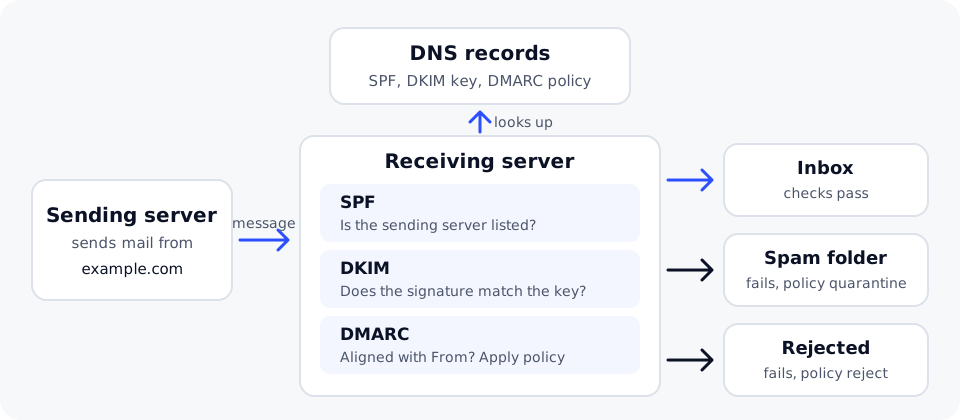
Large mailbox providers, including Gmail and Yahoo, have required SPF, DKIM and DMARC from senders of large volumes of email since 2024, and they use these checks when filtering all mail.
SPF
An SPF record is a TXT record on your domain that lists the servers and services allowed to send email for it.
example.com. 3600 IN TXT "v=spf1 include:_spf.example.net ~all"
v=spf1marks it as an SPF record.include:_spf.example.netallows the servers that the email provider publishes under that name. Each sending service you use gives you its owninclude:value.~allasks receivers to treat mail from any other server with suspicion.-allasks them to reject it.
Rules that matter:
- Have one SPF record per domain. Two SPF records make SPF fail. To add a sender, add its
include:to the existing record. - An SPF check may use at most 10 DNS lookups. Each
include:,a,mxandredirectcounts, including the ones nested inside includes. Remove services you no longer use.
DKIM
DKIM signs each outgoing message with a private key held by your email provider. The matching public key is published in your DNS, so receivers can check the signature and confirm the message was not changed on the way.
Your email provider generates the key and tells you what to publish. It goes on a name made of a selector (chosen by the provider), _domainkey, and your domain:
selector1._domainkey.example.com. 3600 IN TXT "v=DKIM1; k=rsa; p=MIIBIjANBgkqh...IDAQAB"
The p= value is long. Copy it exactly, without adding spaces or line breaks. Some providers ask for a CNAME instead of a TXT record so they can change keys for you; use whichever type they specify. Each service that sends email for you has its own selector, so several DKIM records can exist side by side.
DMARC
DMARC is a TXT record on _dmarc in front of your domain. It tells receivers what to do with messages that fail authentication and where to send reports about your domain's email.
_dmarc.example.com. 3600 IN TXT "v=DMARC1; p=none; rua=mailto:dmarc-reports@example.com"
p=is the policy:none(only report),quarantine(treat as suspicious, often the spam folder) orreject(refuse the message).rua=is the address that receives daily summary reports. Use a mailbox you check, or a reporting service.
For DMARC to pass, a message must pass SPF or DKIM and the domain that passed must match the domain in the "From" address. This match is called alignment, and it is what stops someone using their own domain's SPF to send mail that claims to be from yours.
Set them up in a safe order
- List every service that sends email using your domain: your mailbox provider, your website's contact forms, newsletter tools, invoicing or helpdesk software.
- Publish one SPF record that includes all of them.
- Turn on DKIM for each service, publishing the records each one gives you.
- Publish DMARC with
p=noneand a reporting address. - Read the reports for a few weeks. Fix any genuine service that fails, usually by adding it to SPF or turning on its DKIM.
- Move to
p=quarantine, then top=rejectonce the reports show only unwanted senders failing.
Jumping straight to p=reject can block your own legitimate email, such as invoices sent by a service you forgot to add. Start with p=none and tighten the policy only when the reports look clean.
Check your records
Look up what is published with these commands, replacing example.com and the selector with your own:
dig +short TXT example.com
dig +short TXT selector1._domainkey.example.com
dig +short TXT _dmarc.example.com
You can also send a message to a mailbox at a large provider and look at the message's original headers, where an Authentication-Results line shows spf=pass, dkim=pass and dmarc=pass when everything works.
To add these records in your DomainPilot account, follow the SPF, DKIM and DMARC guide on the DomainPilot website. Your email provider supplies the SPF and DKIM values. For email apps, see Set up business email on any device.