Why DNS changes take time
After you change a DNS record, some people see the change straight away and others still see the old answer for a while. This delay is usually called propagation. Nothing is being pushed out across the internet: other networks are simply reusing a copy of the old answer until it expires.
How DNS caching works
When someone visits example.com, their device asks a resolver, usually run by their internet provider, their company or a public DNS service. The resolver finds the answer from your domain's nameservers and keeps a copy for as long as the record's TTL (time to live) allows.
Until that copy expires, the resolver answers from memory and does not ask your nameservers again. So if a record had a TTL of 86400 (24 hours), a resolver that looked it up just before your change can keep returning the old value for up to a day.
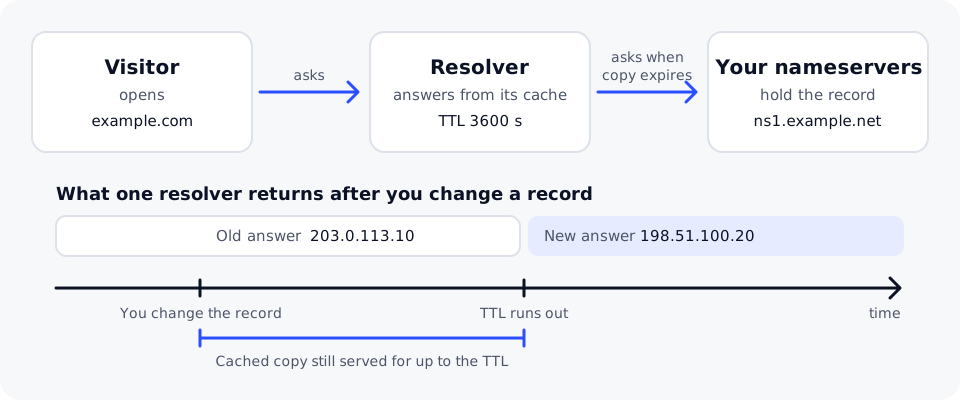
Browsers and operating systems also keep their own short-lived copies, which is why one device can show the change before another on the same network.
Why nameserver changes take longer
When you change nameservers, the new list goes to the registry for your domain's extension. Resolvers that already know your old nameservers keep using them until that information expires too, and those delegation records often have long TTLs set by the registry, commonly a day or two. You cannot shorten that wait, which is why nameserver changes are commonly quoted as taking up to 48 hours.
Plan a change so it lands quickly
The TTL that matters is the one the record had before your change. To make a planned move fast:
-
A day or more ahead (at least as long as the current TTL), lower the TTL of the records you will change to 300 seconds (5 minutes).
-
Wait until the old TTL has passed, so every cached copy now has the short TTL.
-
Make the change. Most visitors now see it within minutes.
-
Check the new value directly at your nameservers, so caches don't fool you:
dig +short example.com A @ns1.example.netReplace
ns1.example.netwith one of your own nameservers. On Windows, usenslookup example.com ns1.example.net. -
Raise the TTL again, for example to 3600 seconds, once everything works.
Brand-new records can be delayed too
If someone looked up a name before you created it, their resolver may remember that it did not exist. How long it keeps that "no such name" answer is set in your zone's SOA record, often between a few minutes and a few hours. To avoid this, create new records before you announce or test them.
Clear the cache on your own device
If the change works elsewhere but not on your computer, clear your device's DNS cache:
- Windows: open Command Prompt as administrator and run
ipconfig /flushdns. - macOS: in Terminal, run
sudo dscacheutil -flushcache; sudo killall -HUP mDNSResponder. - Linux with systemd-resolved: run
resolvectl flush-caches.
Then close and reopen your browser, or try a private window. You cannot clear other networks' caches; for those, the only fix is waiting for the TTL to pass.