Backups and restores
A backup is a copy of your website, its data and your email that you can return to if something goes wrong: a failed update, a deleted page, a hacked site or a mistake in a configuration file. This guide explains what to back up, how often, where to keep copies and how to restore them. It applies to any website owner, whatever the size of the site.
What to back up
A complete backup covers everything needed to rebuild the site and its email.
| Part | What it includes | Why it matters |
|---|---|---|
| Files | Website code, themes, plugins, uploaded images and documents, configuration files such as .htaccess | The site cannot run without them, and uploads often exist nowhere else |
| Databases | Posts, pages, products, orders, users and settings | Most of a modern site's content lives here, see Databases explained |
| Mailboxes and their messages, if your email is hosted with your website | Messages deleted from the server may not be recoverable otherwise |
A file backup without the database, or the other way round, is usually not enough to bring a site back.
Automatic and manual backups
Automatic backups run on a schedule, without you doing anything. Many hosts include them. Check three things: how often they run, how long they are kept (the retention), and whether you can restore them yourself.
Manual backups are ones you start yourself, for example by downloading your files and exporting your database, or with a backup plugin inside your website app. Take one:
- before updating your website app, themes or plugins
- before changing the PHP version
- before editing configuration files or
.htaccess - before a migration or redesign
Manual backups also let you keep a copy for longer than your host's retention period.
The 3-2-1 rule
A widely used rule for important data is:
- 3 copies of your data: the live site plus two backups
- on 2 different types of storage, such as your host's backup system and your computer or a cloud storage service
- with 1 copy kept off-site, away from the others
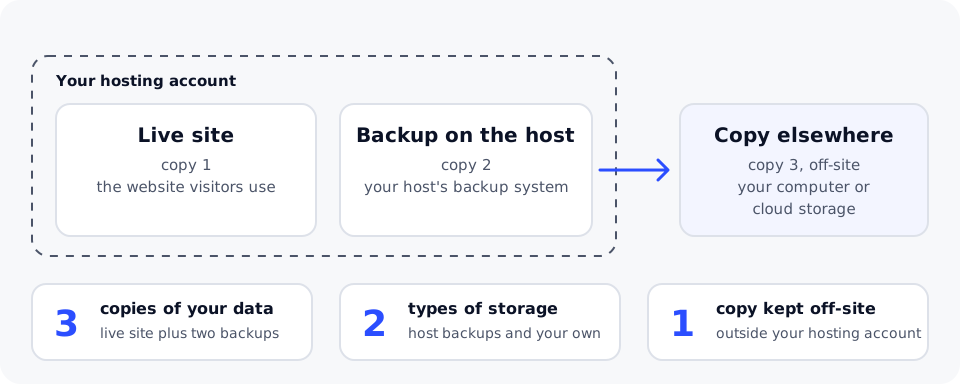
For a website, the most important part is keeping at least one copy outside your hosting account. If the account is hacked, suspended or closed, backups stored only inside it may be lost or damaged along with it.
Name each backup with the site and date, for example example.com-2026-11-11.zip, so the right one is easy to find when you need it.
Restore a backup
Restore a single file
If one file is broken or deleted, you rarely need to restore the whole site. Take the file from the backup and upload it to the same place with your file transfer app, see Upload website files with SFTP. Many hosts' backup tools can also restore single files or folders.
Restore a database
Restoring a database replaces its current contents with the backup's. Anything added since the backup, such as new orders, comments or user accounts, is lost. Export the current database first so you can recover recent items if needed.
Restore the whole site
- Take a backup of the current state first, even if it is broken. It may contain recent data you need later.
- Choose the most recent backup from before the problem started. After a hack, that may be older than you expect.
- Restore the files and the database from the same backup, so they match.
- Check that the site's configuration file still has the right database details.
- Clear any caches, then test the site in a private browser window.
Restoring a clean backup removes the damage but not the cause. Afterwards, update everything, change all passwords and remove unused plugins and themes, or the site can be compromised again in the same way.
Test your backups
A backup you have never restored is only a hope. Every few months, check that you can:
- open your backup archive and find the files you expect
- import the database export into an empty database without errors
- bring the site up from the backup, for example on a staging copy or a test account
Testing shows whether the backup is complete and how long a real restore takes.
DomainPilot web hosting includes weekly backups on the Starter plan and daily backups on the Business, Pro and Elite plans. Business keeps 30 days of backup history and Elite keeps 90 days. The Pro plan includes on-demand restore. WordPress hosting plans include daily backups, plus a backup before each automatic WordPress update. Keep your own copy outside your hosting account as well.
Related guides
- Databases explained
- Upload website files with SFTP
- Plan a website migration
- Snapshots and server backups